How to use
From setup to flag fall
Everything the clock does, in the order you meet it at the board.
Step 1
Pick a time control
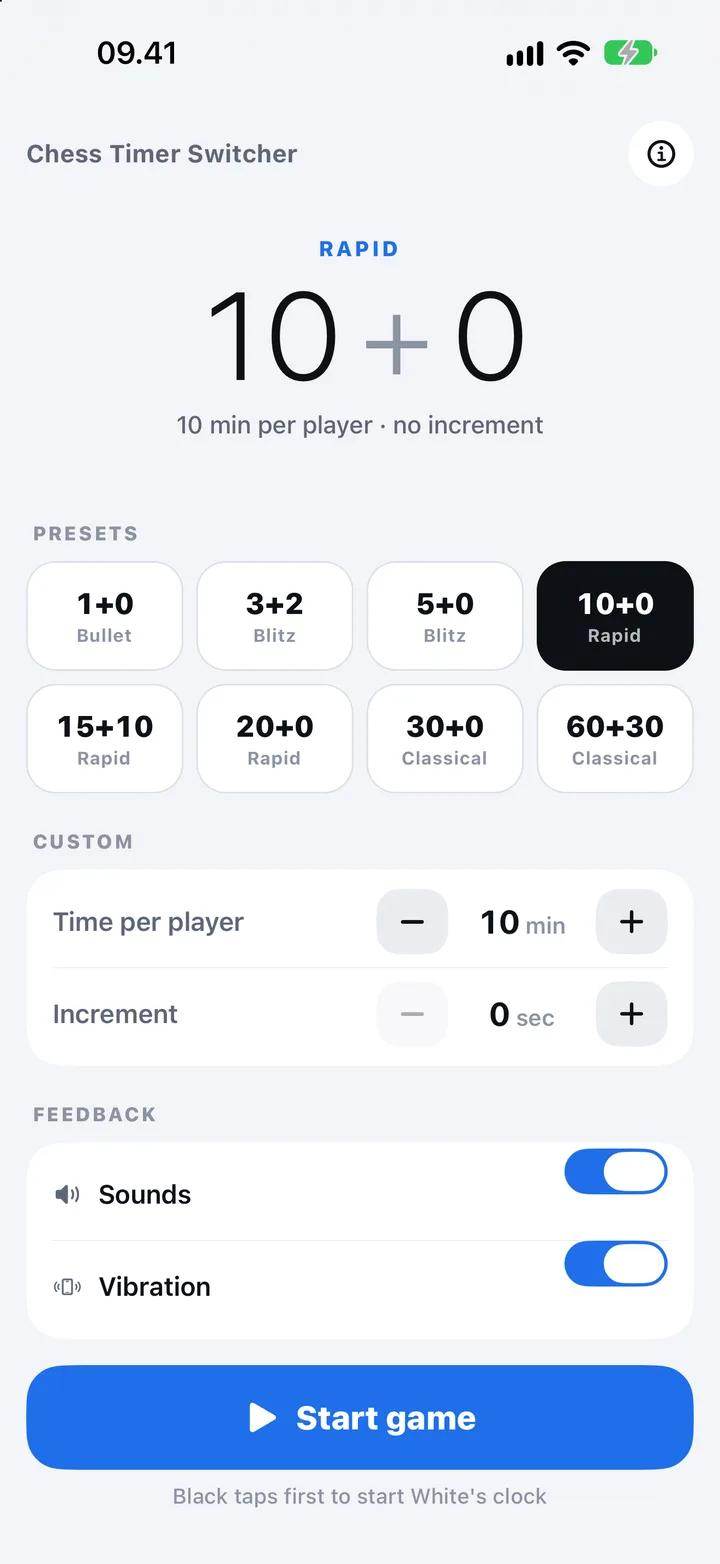
The setup screen opens with your last time control. Tap a preset, from 1 + 0 bullet to 60 + 30 classical, or set your own under Custom: time per player in minutes and an increment in seconds per move.
The big line at the top always shows what you are about to play, such as 3 + 2, which means three minutes each plus two seconds for every move. Sounds and vibration have their own switches below.
Step 2
Place the phone and start
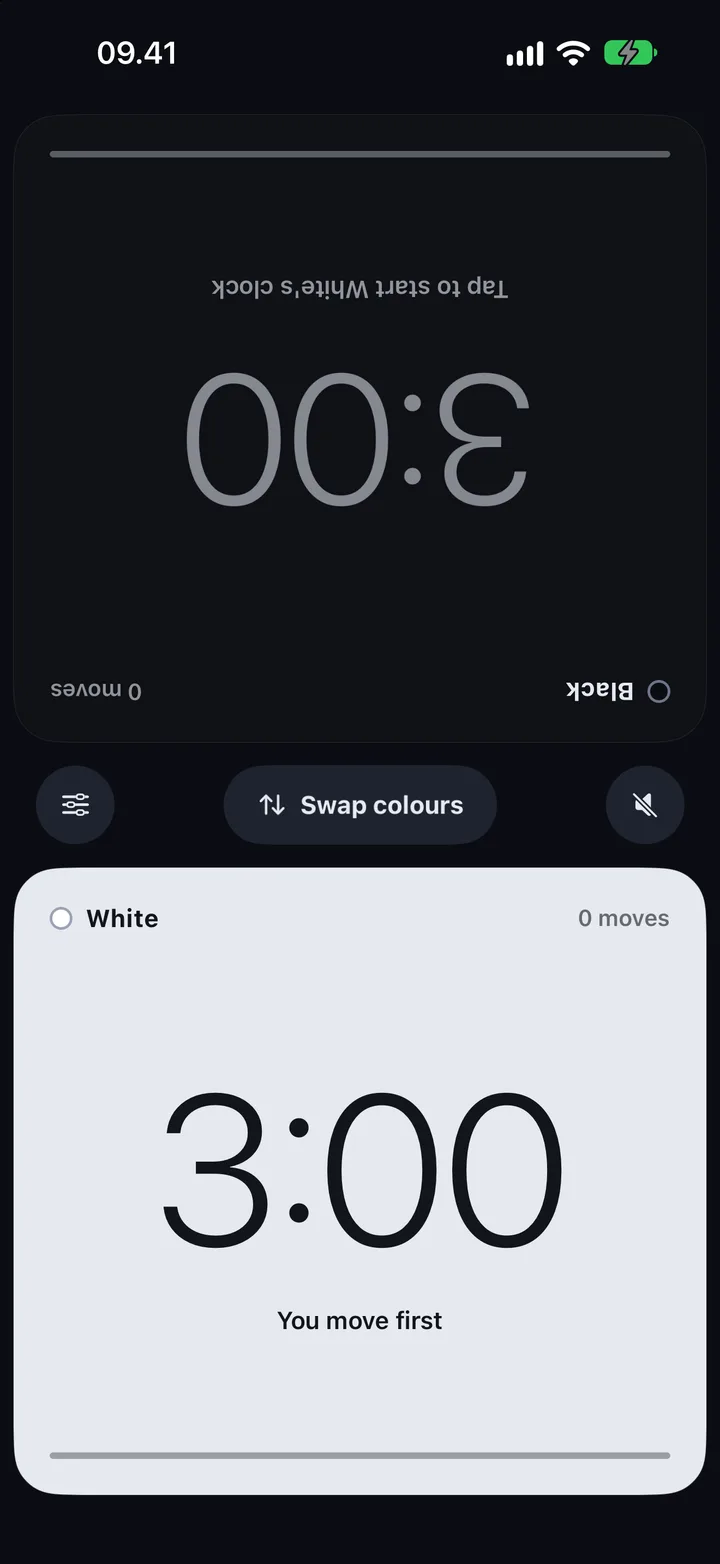
Tap Start game and put the phone beside the board, between the two players. Each half of the screen faces its player, so the far half is upside down on purpose.
White's half sits nearest the bottom of the phone. If White is on the other side of the board, tap Swap colours before anyone moves. Then, just like a real chess clock, Black taps their half to start White's time.
Step 3
Tap after every move
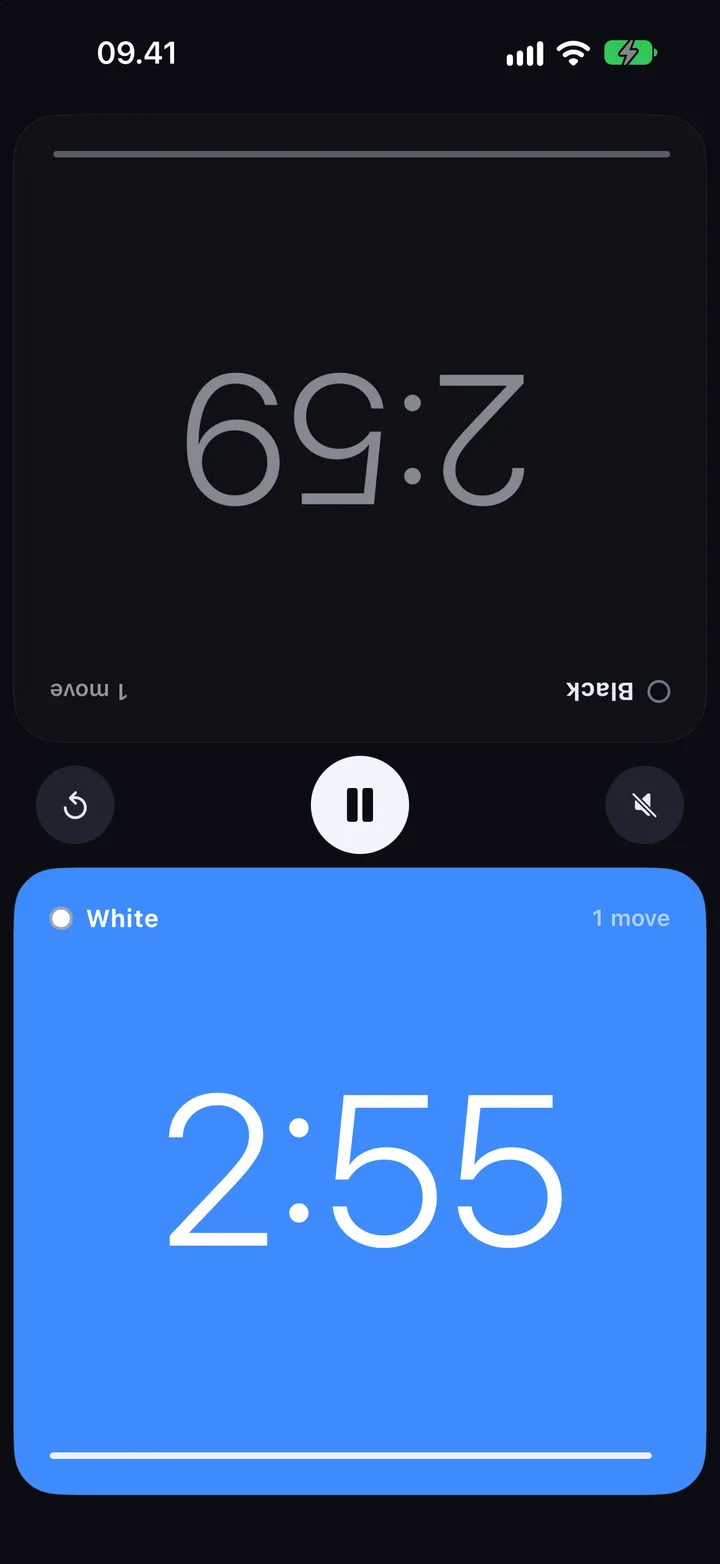
The running clock is blue. When you finish a move, tap anywhere on your half: your clock stops, your increment is added and your opponent's clock starts. A short +2s, or whatever your increment is, shows on your half as it lands.
Each half counts its player's moves, and the screen stays on for the whole game.
Step 4
Watch for time trouble
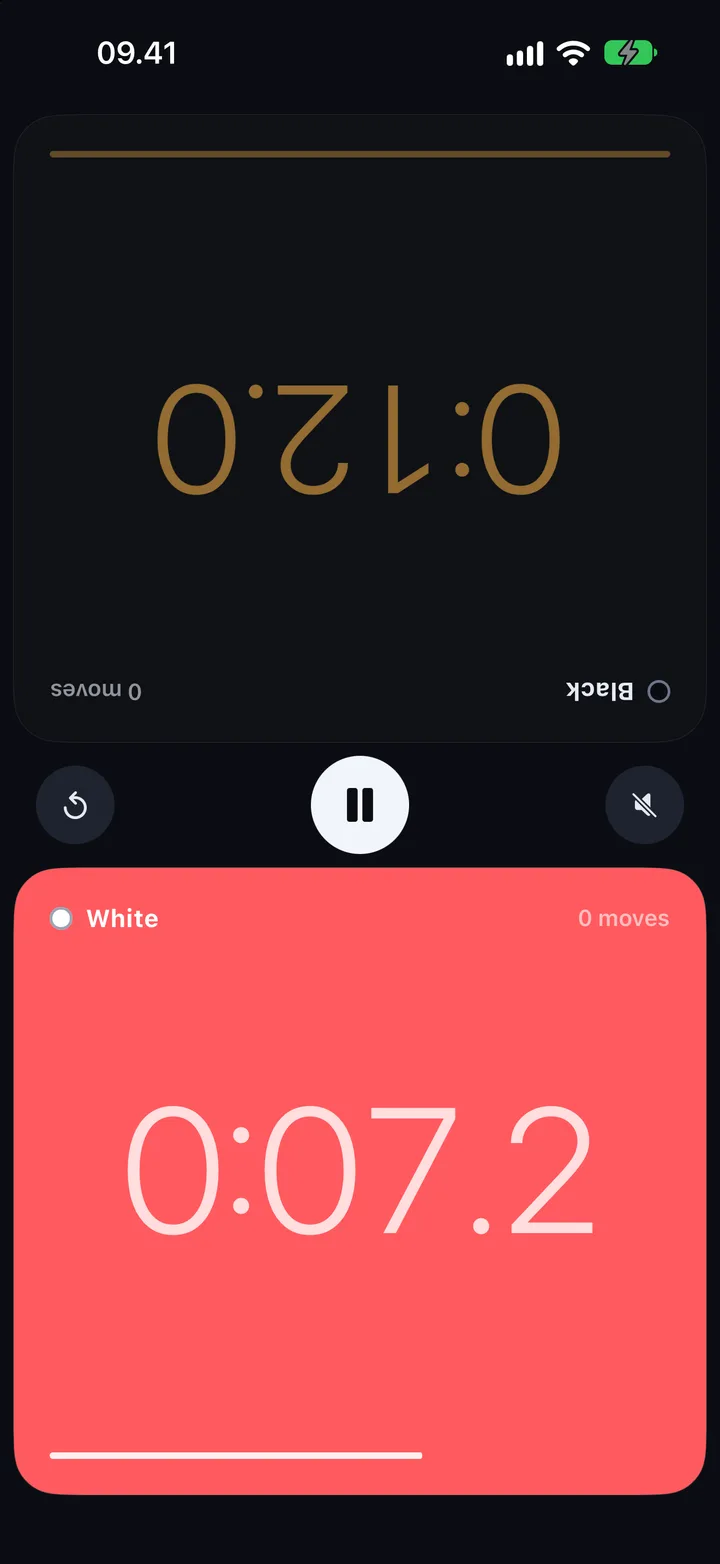
Under 20 seconds the running clock turns amber and shows tenths of a second. Under 10 seconds it turns red, pulses, and the phone buzzes once, so neither player can miss it.
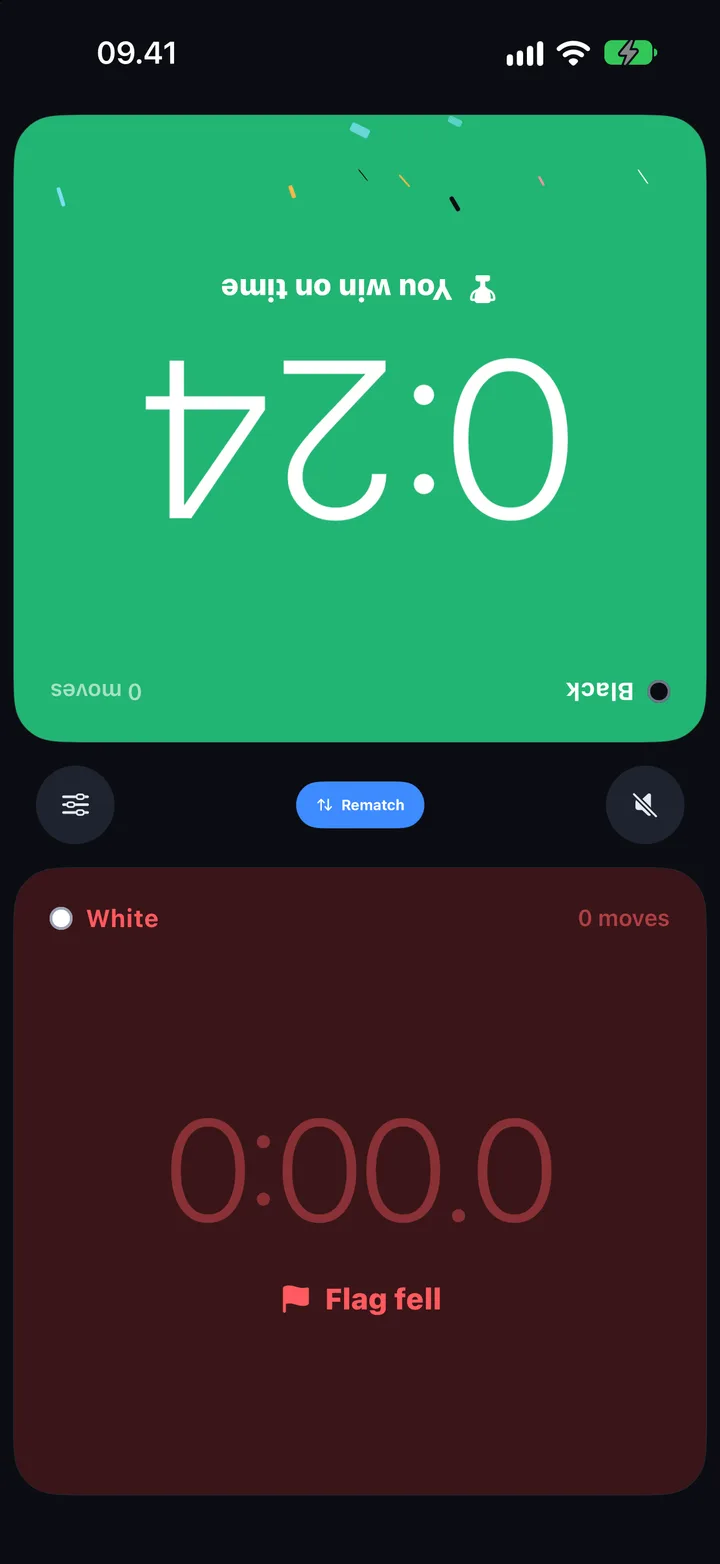
When a clock reaches zero, that player's flag falls. Their half reads Flag fell, and the opponent's half turns green.
Step 5
Pause, or end a game
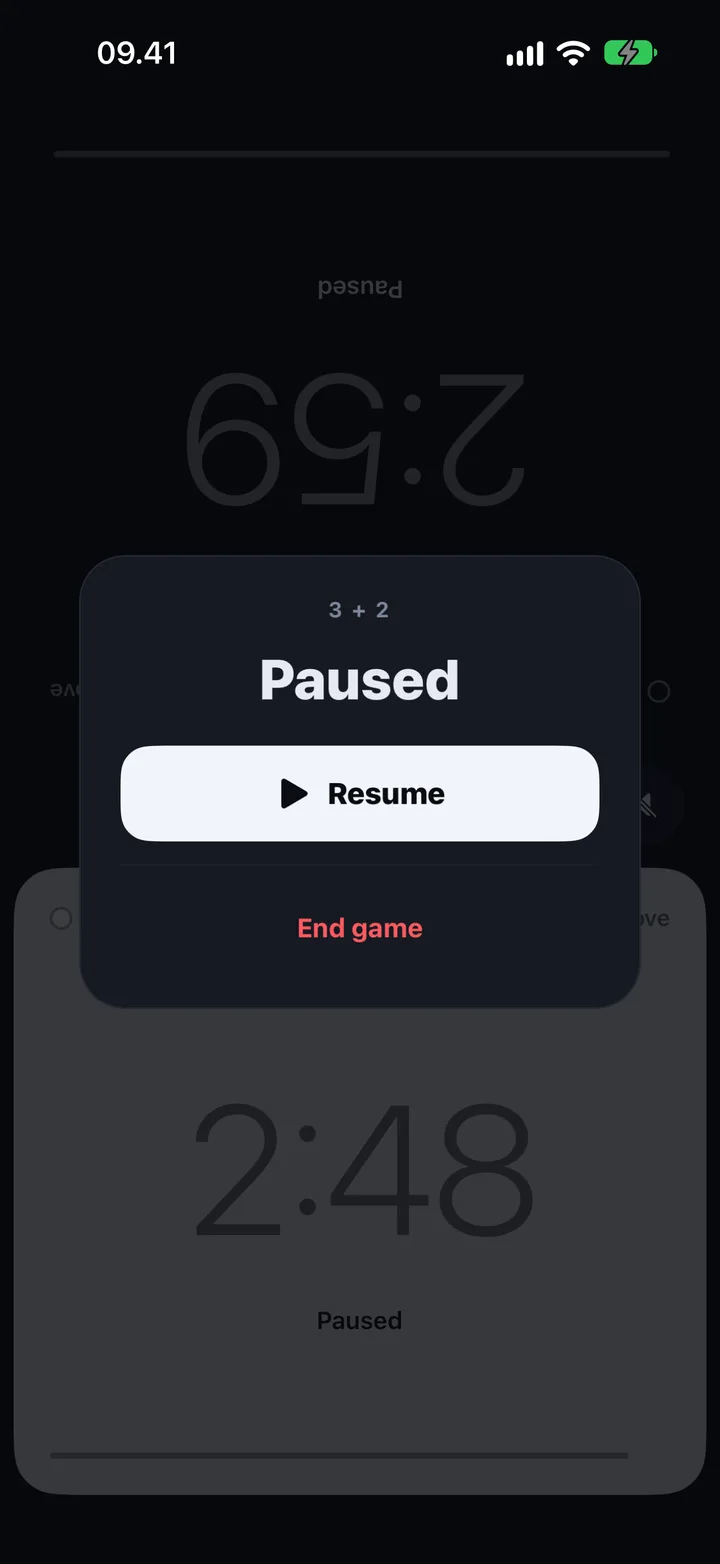
The pause button between the halves stops both clocks and shows the pause screen. Tap Resume to carry on with the same player to move.
The button on the left resets a game in progress, and it asks for a second tap so a stray touch never throws a game away. The speaker button on the right mutes sound.
Step 6
Rematch
After a flag falls, tap Rematch. Both clocks reset to the same time control and the colours swap, so the other player has White this time.
To change the time control instead, use the settings button to go back to the setup screen.
Ready for the first move?
Free to download for Android. The iPhone version is on its way.